
What your client sees
The share page, Listen and Feedback modes, and leaving notes.
This is what happens on your client's side. Short version: they open the link and press play. Send them this page if they get stuck.
Opening the link#
The link opens in any modern browser, on a phone or a computer. No app, no account, no access request.
If the link is locked, they see one screen first:
- Password: they type the password you gave them.
- Email access: they type their email, then open the access link WAVDROP emails them. See Passwords and email access.
Two modes#
A switch at the top changes how the page looks. Your client can flip between them anytime.
| Mode | What it's for |
|---|---|
| Listen | A simple player for listening through the project. The page opens here. |
| Feedback | The work: a waveform per song, notes pinned to the timeline, and replies. |
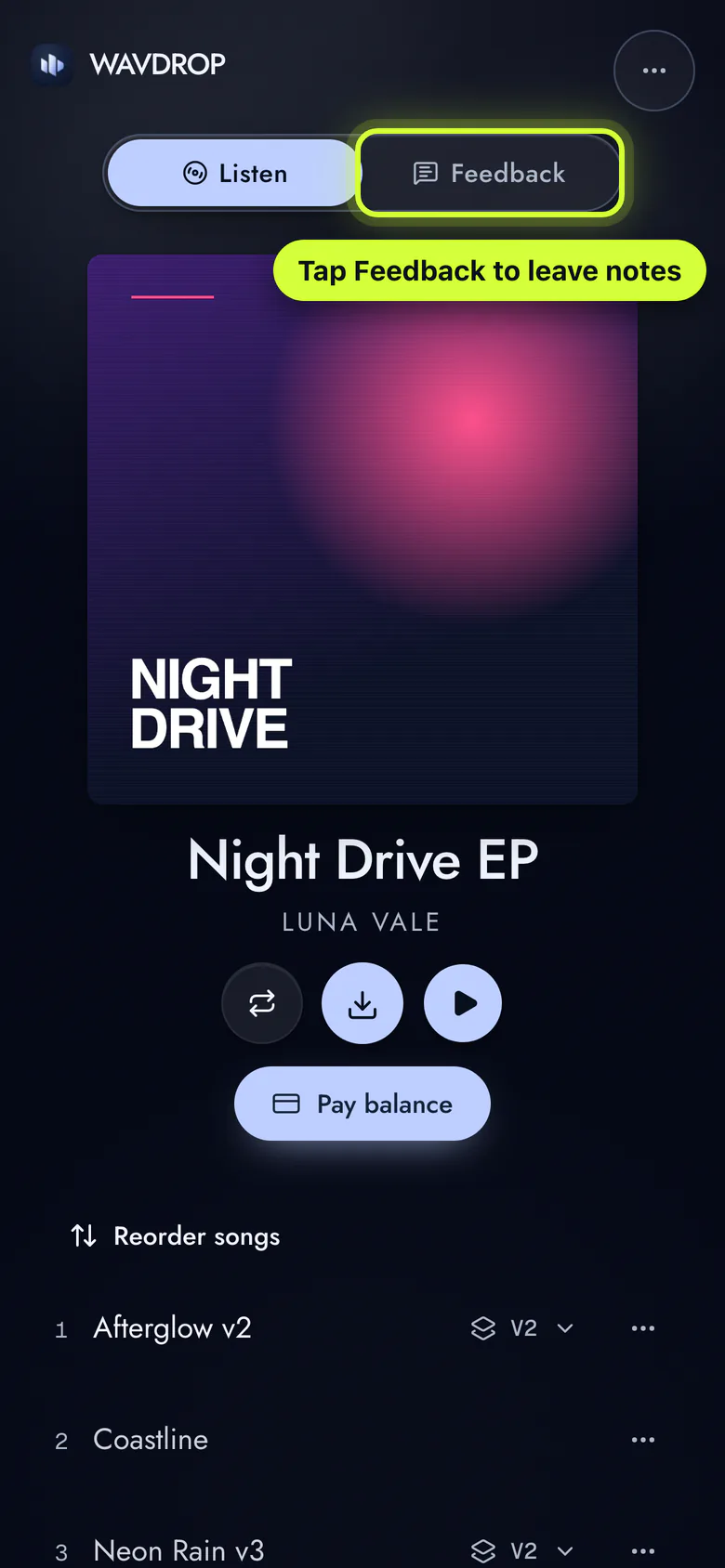 (opens full size in a new tab)
Leaving a note#
- Switch to Feedback and play the song. Next and Previous move between songs.
- Click or tap the note box. Playback pauses and the note pins to that moment, shown as "Commenting at 1:47".
- Add their name and click Post comment.
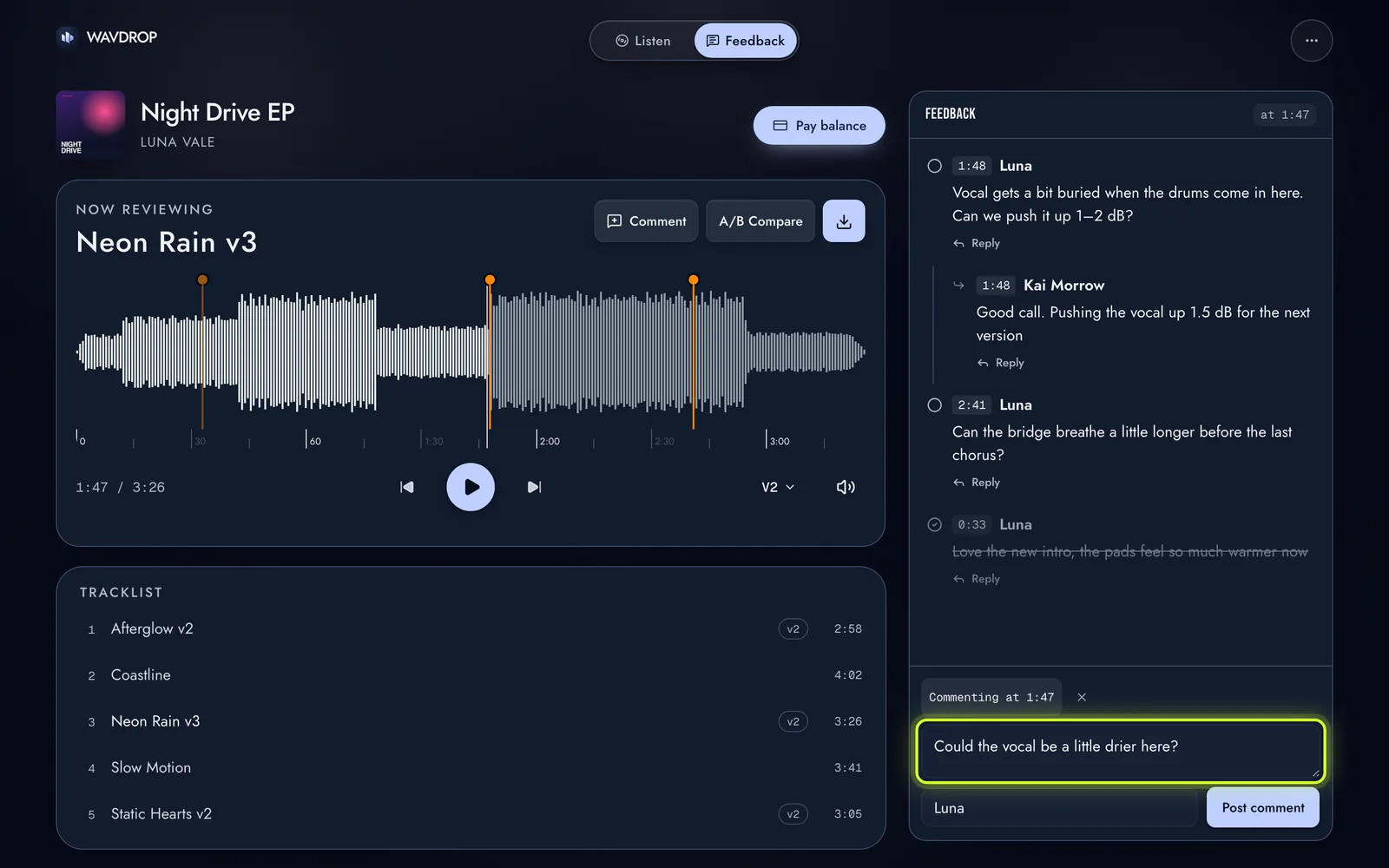 (opens full size in a new tab)
Clearing the pinned time makes the note use the current playback position when posted. Every note still has a timestamp.
Notes show up for you straight away. Your client can also reply to notes, and sees when you've resolved one.
Terms before the first note#
If you've set terms on the project, your client reads and accepts them before their first note. See Terms, revisions and payment.
Versions and info#
- Each song plays its main version. If a song has older versions, your client can pick one from the song. Versions you've hidden don't show.
- Songs with two or more versions offer A/B Compare, so your client can hear them side by side. See A/B Compare.
- From three songs, Album Flow can suggest a listening order for them. It changes only their own order, never yours. See Song order and Album flow.
- File specs and loudness appear only if you've allowed them. See Specs and loudness.
- Download appears only if the project allows downloads. ZIP files are listed after the songs, for download only. See Downloads.
- If you've shared Deliverables, a Deliverables button takes them to the final files.
- Your branding, terms and pay button show if you've set them.
Atmos playback#
Atmos playback depends on the browser and device. If an Atmos file won't play, try Safari on macOS, or switch from Atmos to Stereo preview or Binaural preview when the sender has added one. If the browser can't play Atmos at all, the preview plays on its own.
Without a preview, a browser that can't play Atmos won't be able to play the track. Atmos originals don't show a waveform; a preview may have one.
ADM masters open in a 3D scene player. Listeners pick Headphone preview, their device's spatial output, or a speaker layout. See Atmos and ADM.
Keyboard#
Space plays and pauses, unless the cursor is in a text box.
If something goes wrong#
Check the message under the player and see Troubleshooting. Reloading the page or trying another browser can also help. If WAVDROP itself is having trouble, the status page says so.
Something unclear or missing? Tell us and we'll fix the page.