
Branding
Your name, contacts and image on every client link.
Put your name, contacts and image on every link you send, so clients see your studio, not just WAVDROP. Branding comes with Plus and Pro.
Set it up#
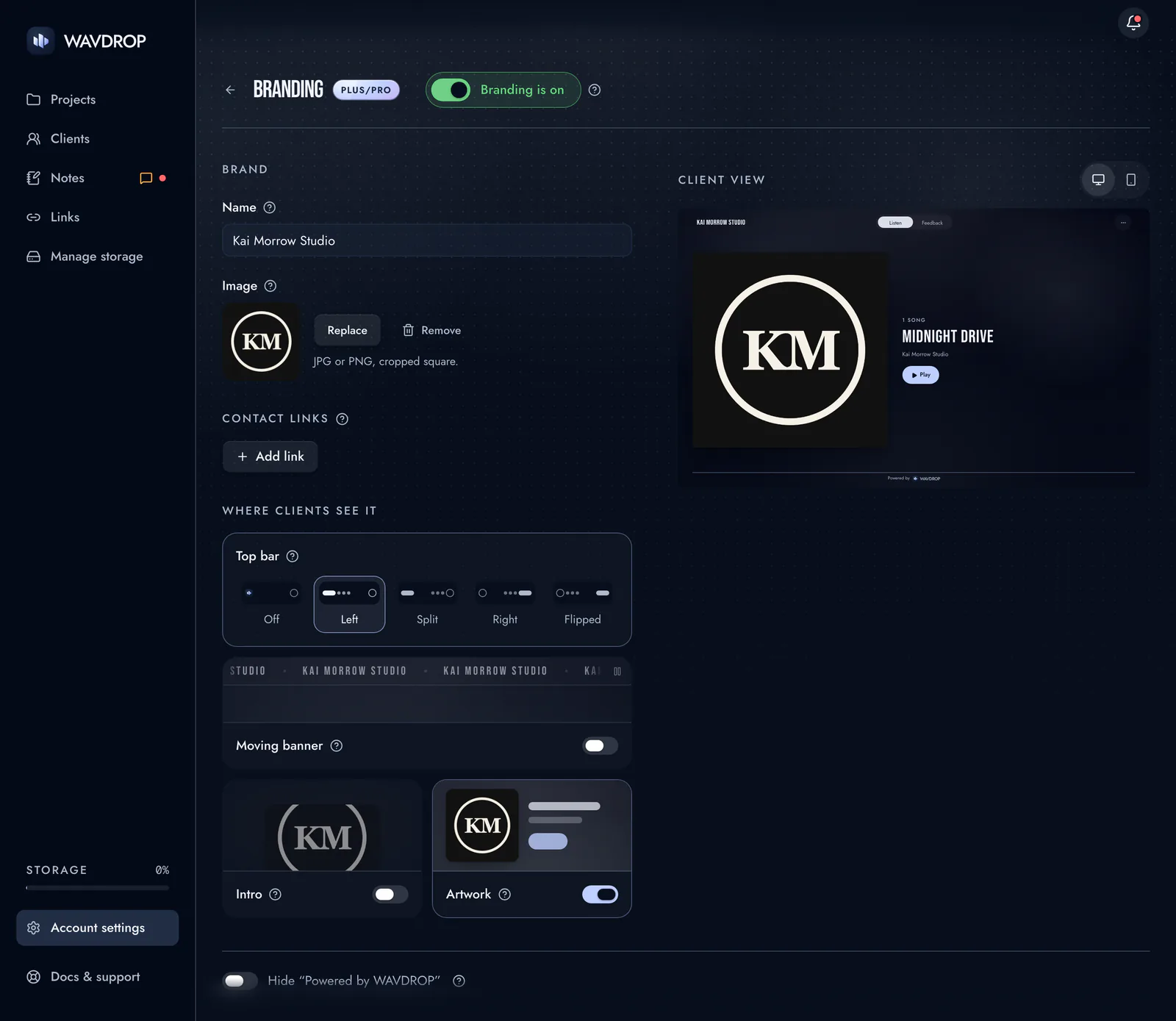
Go to Settings › Branding and choose Set up branding. Changes save as you go, and the preview shows what your client will see.
- Name: your name or your studio's.
- Contact links: your website, email, phone, WhatsApp, Instagram, TikTok, X, YouTube, Spotify or SoundCloud. Each one opens from the page.
- Image: a JPG or PNG, cropped square. Projects without artwork of their own show it instead. A project's own artwork always wins, and your image is never added to downloaded files.
- Top bar: where your name and links sit, or Off for the plain WAVDROP top bar.
- Intro: your image shows for about a second before the page appears. It plays once per link, not on every reload, and a tap skips it.
- Moving banner: a thin strip with your name and contacts that slides slowly across the top or bottom of the page. It stops when a client points at it or presses pause, and stays still for anyone who turns motion off.
- Where clients see it: choose whether each part shows in Listen, Feedback or both.
Use the switch at the top to turn branding on or off for every link at once.
 (opens full size in a new tab)
Per project#
In a project's Project settings, Branding follows your account switch by default. Choose Show or Hide to set it for that project only, for example to send one project unbranded.
Where it shows#
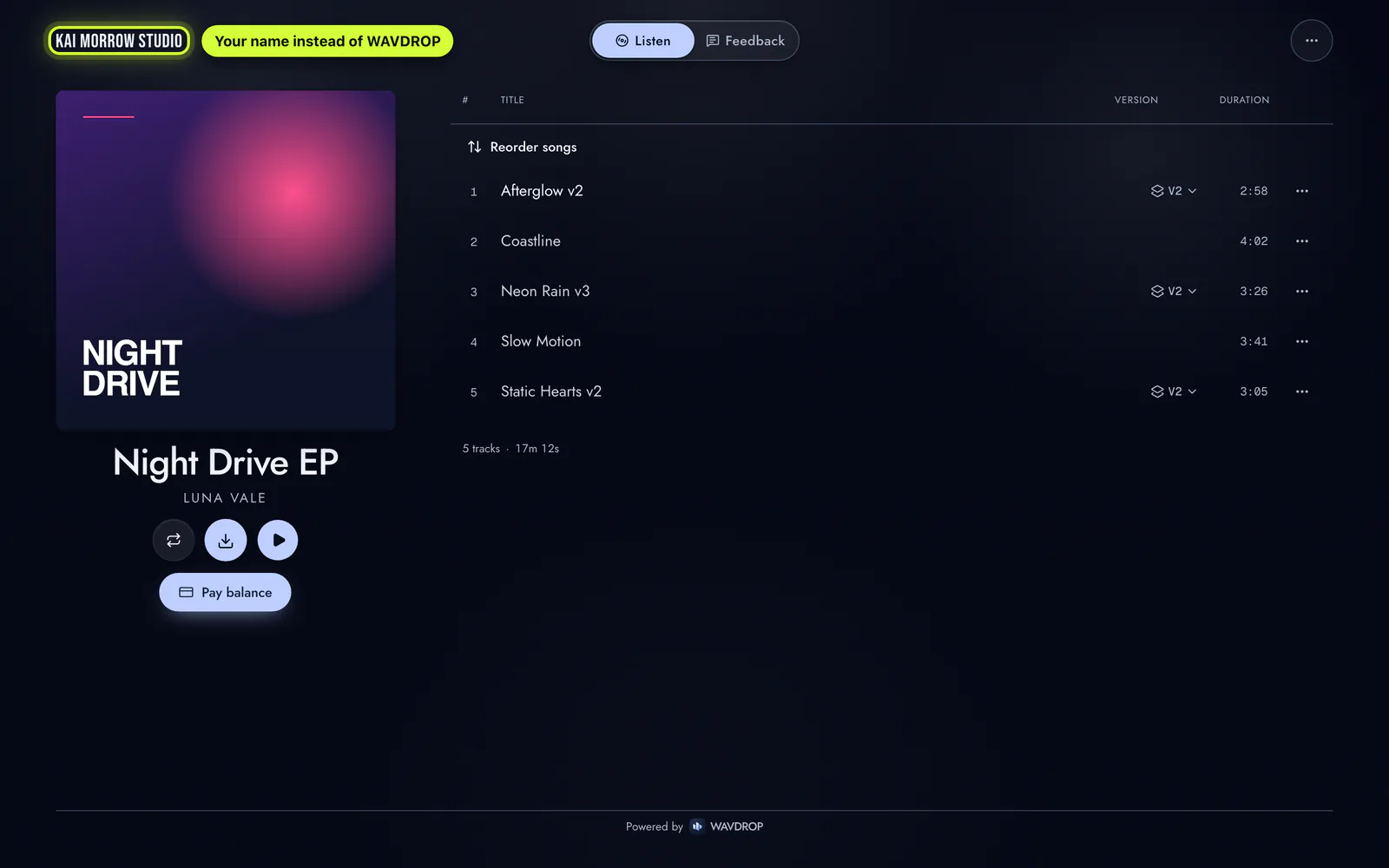
Your branding appears on project links, song links and Deliverables. Check it with Client view on a project.
 (opens full size in a new tab)
Powered by WAVDROP#
Client pages show a small "Powered by WAVDROP" mark. On Pro you can hide it in Settings › Branding.
Pay balance button#
If a project has a payment link, your client gets a pay button. In Settings, Pay balance button places it at the top or bottom of every client player. See Terms, revisions and payment.
Something unclear or missing? Tell us and we'll fix the page.